Manually upload files to File Share
-
Navigate to your new File Share in the Azure portal .
-
You can find the storage account in the resource group:
rg-<environment>-<short company name>-<workload name>-akse.g. ‘rg-prod-tls-cmaas-aks’ -
In the menu at the top, select Upload. The Upload files panel opens.
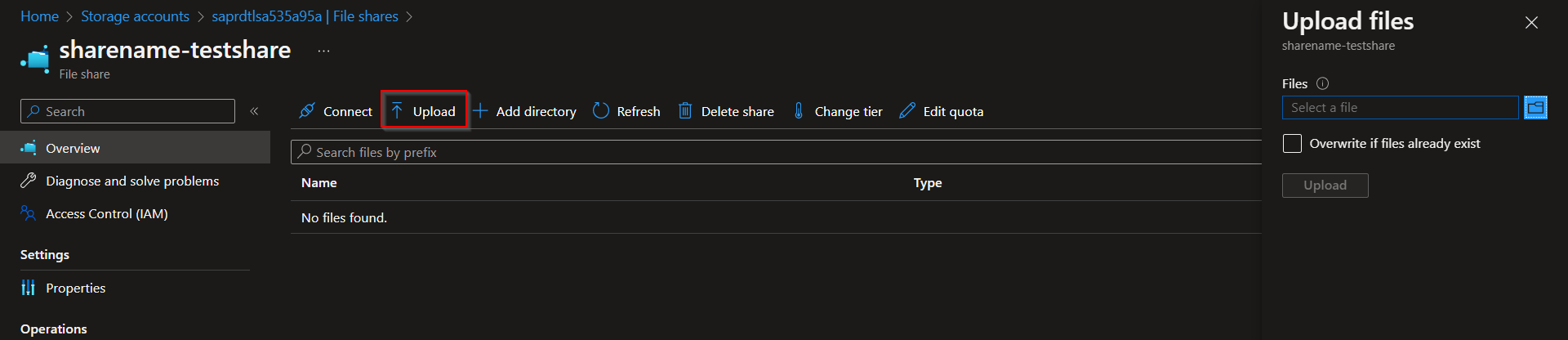
-
Select the folder icon to open a window to browse your local files.
-
Select a file and then select Open.
-
In the Upload files page, verify the file name, and then select Upload.
-
When finished, the file should appear in the list